
Templates are the central design artefact in Maildeno. Each template has a unique ID, a draft state, and a published state.
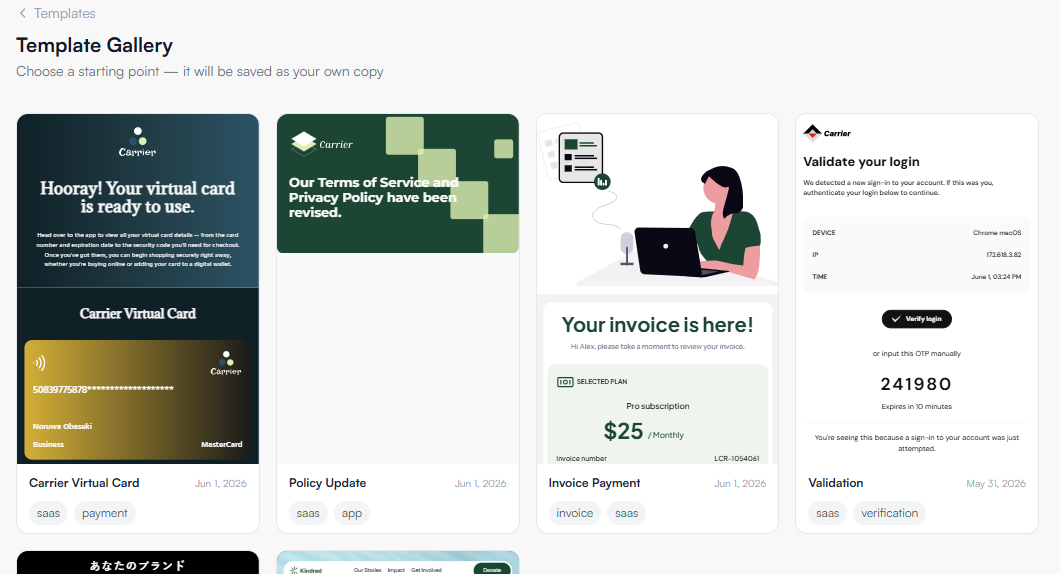
Creating a template
-
In the dashboard, go to Templates.
-
Click New Template.
-
Choose a blank canvas or a pre-built starter layout.
-
Give the template a name — this is shown only in the dashboard.
Template ID
Every template is assigned a UUID at creation, for example:
550e8400-e29b-41d4-a716-446655440000
This ID is stable — it never changes even if you rename or republish the template. Pass it to the SDK or REST API to render the template.
Copy it from Template Cards or in the top-right corner of the editor.
Draft vs published
Maildeno maintains two independent versions of each template:
| Version | Description |
|---|---|
Draft |
The version you’re currently editing. Changes are saved here and do not affect live renders. |
Published |
The version served by the Render API. Update it by clicking Save. |
| Clicking Save replaces the published version immediately. All render calls using this template ID will reflect the new version. Validate in a staging environment first. |
Deleting a template
-
On the Template List Page → hover on the template card, you will see the Delete button, click the delete button → a modal will show for final deletion.
-
Confirm the deletion.
Deleting a template is permanent. Any application code referencing its ID will receive a TEMPLATE_NOT_FOUND error.
|