
The editor is the core of the Maildeno builder. You assemble emails from rows and blocks, customise styles in the settings panel, and preview across desktop and mobile viewports.
Canvas
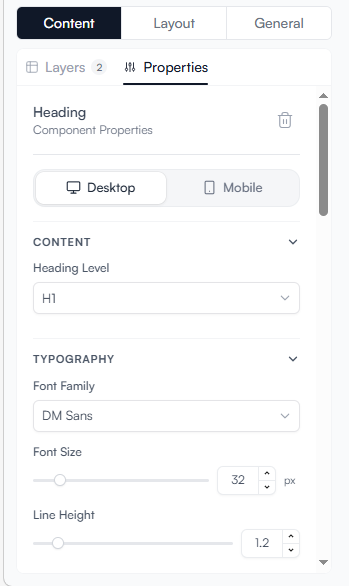
The canvas is the central editing area. Emails are structured as a vertical stack of rows. Each row contains one or more columns, and each column holds one or more blocks or nested Rows.
Maildeno Builder
└─ Row
   ├─ Column
   │  └─ Block (e.g. Image)
   |   └─ Row
   |       ├─ Column (...)
   └─ Column
      └─ Block (e.g. Text)
Adding rows
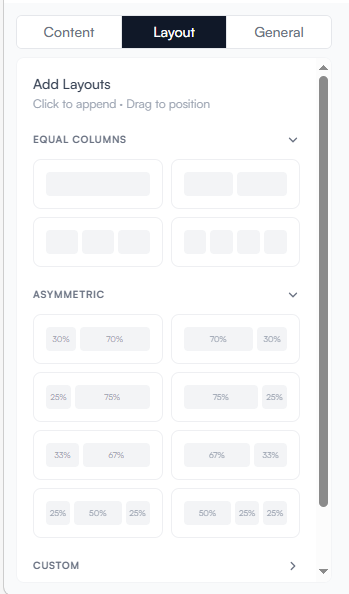
Click Layout tab, Then click or drag a row, row spacer layout from the Layouts panel on the left.
Available row layouts:
-
Full-width (1 column)
-
Two-column (50/50, 60/40, 40/60)
-
Three-column
-
Four-column
-
Custom layout
Adding blocks
Drag or click a block from the Blocks panel and drop it into any column. You can reorder blocks within a column or move them to another column.
| Block | Description |
|---|---|
Heading |
H1–H4 with full font, size, and colour control. |
Text |
Rich paragraph text with inline formatting. |
List |
Ordered or unordered lists with customizable styling. |
Menu |
Navigation menu with configurable links and alignment. |
Image |
Upload or link an image. Supports |
Video |
Link videos. Supports |
Button |
CTA button with customisable label, URL, colours, and border radius. |
Anchor |
Text link with customizable label, URL, colours, and styling. |
Divider |
Horizontal rule with colour and padding control. |
Spacer |
Empty vertical space block. |
Socials |
Social media links/icons with customizable URLs, and layout. |

Settings panel
Click any block or row to open its settings in the right panel.
Block settings (example: Text block)
-
Content — Rich text editor with merge tag insertion button
-
Font — Family, size, weight, colour, line-height
-
Spacing — Padding (top, right, bottom, left)
-
Alignment — Left, centre, right
Row settings
-
Background colour — Per-row colour or image
-
Padding — Outer and inner spacing
-
Visibility Rule — Attach a visibility rule to show/hide this row based on context
Email Health
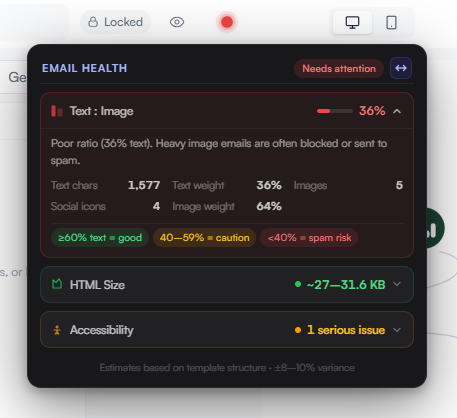
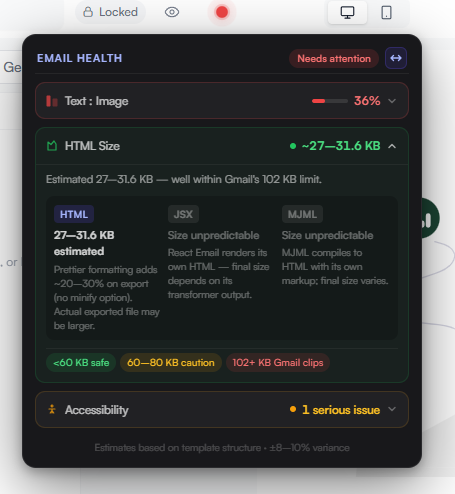
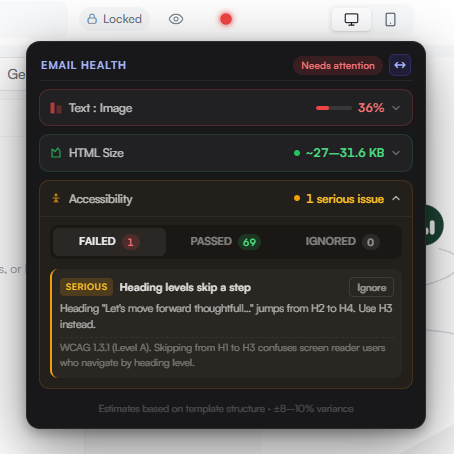
Click the Dot Indicator in the top bar to open the health panel. It checks three properties of your email before you send:
-
Text:Image — checks whether your email has enough text relative to images. A low ratio can trigger spam filters.
-
HTML Size — estimates the size of your rendered HTML. Emails that exceed ~100KB may be clipped by Gmail and other clients.
-
Accessibility — flags missing alt text on images and other issues that affect screen readers.
Preview
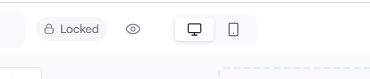
Use the Preview toggle in the top bar to switch between:
-
Desktop — 600px width (industry standard for email clients)
-
Mobile — 360px width
Autosave and Save
-
Autosave — Saves a draft. The published version is unchanged.
-
Save — Promotes the current draft to the published version. The Render API always uses the published version.
| Publishing immediately affects all render calls using this template ID. Test thoroughly in staging before publishing. |